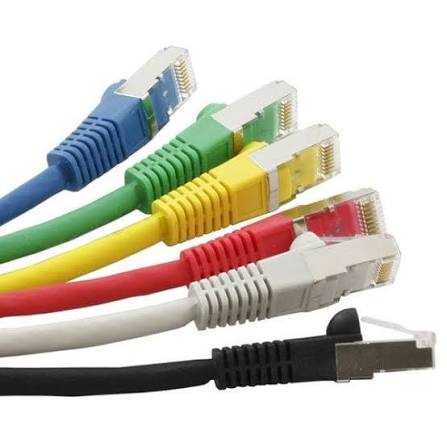
Picture includes 6 multicolor ethernet cables.
How Does Fake Information Spread Online?
The majority of information most people ingest today stems from common media like news outlets and social media. The problem with this being the main stream of information for many people is most news or information being posted is being done in the interest of a growing platform for advertisement revenue and growth. This leads to the clickbait and shocking stories we often see which are commonly false, stretched, or outdated. These shocking and plausibly false stories then can sit in the back of people’s minds as the truth and be spread as the truth through the readers, being reposted and retold all without being verified or checked for accuracy. This all creates a cycle where information can be spread quickly.
Nieman Lab article on fake news; By Denise-Marie Ordway
AI & Misinformation
Artificial Intelligence can generate and supply misinformation to readers. AI is trained on previous data, this allows AI to be trained on misinformation or misunderstand what it sarcasm, leading to results that are false. Sometimes these are called hallucinations with ai, when it hands you an answer with tons of confidence and seemingly truthful context that turns out to be all false. I think with everything we read online especially with AI, we must be skeptical of all claims and information. Even AI videos are becoming increasingly realistic and we must be skeptical of what we watch and share.
Conversation Title: Wiring a T568B Ethernet Cable
Agent: ONEchat
[09/14/2026 02:35:18 +00:00] John Nett (jnett):
How do you wire a classic Ethernet T568B cable, and what are the steps, cite all sources used.
Response:
T568B Wiring Steps
The T568B standard uses this color order from pin 1 to pin 8[doc1][doc2]:
- White/Orange
- Orange
- White/Green
- Blue
- White/Blue
- Green
- White/Brown
- Brown
Step-by-Step Wiring Instructions
1. Strip the Cable[doc1]
- Use a cable stripper to remove about 1.25 inches of the outer jacket
- Avoid nicking the inner conductors
2. Untwist the Pairs[doc1]
- Carefully untwist each of the four twisted pairs
- Keep as much twist as possible close to the connector for signal integrity[doc1][doc3]
- Untwist only the length needed for termination
3. Arrange the Wires in T568B Order[doc1][doc3]
- Lay out the eight wires from left to right following the T568B color sequence
- Hold the RJ45 connector with the clip facing down and the gold pins facing you
- Read from left to right (pins 1–8)
4. Trim and Straighten[doc1][doc2]
- Trim all wires to be even at about 0.5 inches in length
- This ensures they fit cleanly into the connector channels
5. Insert the Wires into the Connector[doc1][doc3]
- Push each conductor fully into its individual channel in the RJ45 plug
- Each wire must reach the front and make contact with the gold pin
- Seat the cable jacket under the strain relief boot
6. Crimp the Connector[doc1][doc2]
- Use an RJ45 crimping tool to crimp firmly
- Do not attempt to reuse a crimped connector if the wiring is incorrect
7. Test the Cable[doc1][doc2]
- Use a cable tester to verify continuity on all 8 pins
- Confirm each wire is connected to the correct pin before using the cable[doc2]
Key Reminders
- T568B is the most common standard in North America for residential and commercial installations[doc1][doc4]
- Both ends of a straight-through cable must use the same standard[doc1][doc4]
- Mixing T568A on one end and T568B on the other creates a crossover cable, which has different uses[doc2][doc4]
- T568A and T568B deliver identical electrical performance—consistency matters more than which standard you choose[doc5]
- [2]https://www.soulinconn.com/industry-news/rj45-wiring-guide-color-codes-pinouts-easy-crimping-tutorial/
- [3]https://www.flukenetworks.com/blog/cabling-chronicles/wire-map-testing-it-s-not-all-about-color
- [4]https://www.flukenetworks.com/support/knowledge-base/linkiq/split-pair-identification
Analysis:
Haiku 4.5 did a very good job, it got the wiring correct, gives plenty of extra steps that go above and beyond. Also giving a key reminders section and giving the user tips. All sources look trustworthy and correct. My overall score 9/10.
Conversation Title: How do you wire a classic Ethernet T568B cable, an
Agent: ONEchat
[09/14/2026 02:36:36 +00:00] John Nett (jnett):
How do you wire a classic Ethernet T568B cable, and what are the steps, cite all sources used.
Response:
For a standard straight-through Ethernet cable, terminate both ends as T568B. T568A and T568B have equivalent Ethernet performance, but mixing them creates a crossover cable rather than a normal straight-through cable.[doc1]
T568B pin order
Hold each RJ45 plug with the gold contacts facing you, the locking clip facing down, and pin 1 on the left.[doc2]
| Pin | Wire color |
|---|---|
| 1 | White/orange |
| 2 | Orange |
| 3 | White/green |
| 4 | Blue |
| 5 | White/blue |
| 6 | Green |
| 7 | White/brown |
| 8 | Brown |
This sequence is the T568B color code for pins 1–8.[doc1][doc2]
Tools and materials
You need Ethernet cable, two compatible 8P8C/RJ45 plugs, a cable stripper, an RJ45 crimping tool, a flush cutter, and a cable tester.[doc2]
Termination steps
- Cut the cable to the required length, leaving enough extra length to work comfortably.[doc2]
- Strip approximately 25–30 mm of the outer jacket without nicking the insulated conductors.[doc2]
- Separate the four twisted pairs and untwist only the amount necessary to arrange the wires; excessive untwisting can degrade signal performance.[doc2][doc3]
- Arrange the conductors left to right in this order:
White/orange, orange, white/green, blue, white/blue, green, white/brown, brown.[doc2] - Flatten and trim the wires evenly so all eight conductors reach the connector together.[doc2]
- Insert the wires fully into the RJ45 plug. Verify that the order remains correct, all conductors reach the front of the plug, and the cable jacket enters the plug’s strain-relief area.[doc2]
- Crimp the plug firmly with the RJ45 crimper so the contacts pierce the conductor insulation and the strain relief grips the jacket.[doc2]
- Repeat the same T568B process on the other end. Using T568B on both ends produces a straight-through cable.[doc1]
- Test the completed cable with a cable tester and confirm the correct pin-to-pin wire map, with no opens, shorts, reversed pairs, crossed pairs, or split pairs.[doc3] A basic continuity test alone may miss a split pair, which can cause significant crosstalk, so use a tester capable of detecting split pairs when performance matters.[doc4][doc3]
For Gigabit Ethernet, all four twisted pairs—and therefore all eight conductors—must be correctly terminated.[doc2] Do not reuse a crimped RJ45 plug; cut it off and install a new one if the termination fails.[doc2]
Sources
- Fluke Networks, “Differences Between Wiring Codes T568A vs T568B.”[doc1]
- Fluke Networks, “Wire Map Testing: It’s Not All About Color.”[doc3]
- Fluke Networks, “Split Pair Identification.”[doc4]
- Soulin, “RJ45 Wiring Diagram: T568A/T568B Color Code, Pinout and Crimping.”[doc2]
Analysis:
Luna 5.6 did great, Pin and color combinations are all once again correct, list of materials is right as well. Additionally the sources were all trustworthy. Luna had by far the simplest of all the answers but still conveyed the right message, my overall score 8/10.
Conversation Title: How do you wire a classic Ethernet T568B cable, an
Agent: ONEchat
[09/14/2026 02:36:07 +00:00] John Nett (jnett):
How do you wire a classic Ethernet T568B cable, and what are the steps, cite all sources used.
Response:
Here is a clear, step-by-step guide to wiring a classic Ethernet T568B cable, along with the key principles and citations from authoritative sources:
How to Wire a T568B Ethernet Cable
1. Understand the T568B Standard
The T568B wiring standard is the most common scheme for Ethernet cables in North America. It specifies the order of the 8 wires inside an RJ45 connector. The color code for T568B is:
| Pin | Color |
|---|---|
| 1 | White/Orange |
| 2 | Orange |
| 3 | White/Green |
| 4 | Blue |
| 5 | White/Blue |
| 6 | Green |
| 7 | White/Brown |
| 8 | Brown |
Key Rule: Use the same standard (T568B) on both ends of the cable for a “straight-through” connection, which is used to connect devices like computers to switches or routers. Mixing T568A and T568B creates a “crossover” cable, which is rarely needed in modern networks due to Auto-MDIX support.
2. Gather Tools and Materials
You will need:
- Ethernet cable (Cat5e, Cat6, or Cat6A)
- RJ45 connectors (matched to your cable type)
- Cable stripper
- RJ45 crimping tool
- Flush cutter or scissors
- Cable tester (recommended)
Pro Tip: Use connectors designed for your cable category (e.g., Cat6 connectors for Cat6 cable) and conductor type (solid or stranded).
3. Strip the Cable Jacket
- Use a cable stripper to remove 1.5 inches (38 mm) of the outer jacket.
- Be careful not to nick the inner wires.
- If the cable has a spline (a plastic separator), trim it flush with the jacket.
4. Untwist and Arrange the Wires
- Untwist the 4 pairs of wires.
- Arrange the wires in the T568B order (see table above).
- Critical: Keep the untwisted length as short as possible (under 0.5 inches for Cat6/Cat6A) to minimize crosstalk and signal loss.
5. Flatten and Trim the Wires
- Hold the wires flat and parallel.
- Use flush cutters to trim the wires evenly, leaving about 0.5 inches (13 mm) of exposed wire from the jacket.
- Ensure all 8 wires are the same length and reach the front of the RJ45 connector.
6. Insert the Wires into the RJ45 Connector
- Hold the RJ45 connector with the clip facing down and the contacts facing you.
- Insert the wires into the connector, ensuring:
- Each wire is in its own channel.
- The wires reach the front of the connector.
- The cable jacket is seated inside the strain relief area of the connector.
7. Crimp the Connector
- Insert the connector into the crimping tool.
- Squeeze the tool firmly until it releases. This:
- Pierces the wire insulation with the metal contacts.
- Secures the strain relief on the cable jacket.
8. Test the Cable
- Use a cable tester to verify:
- All 8 wires are correctly mapped.
- There are no opens, shorts, or split pairs.
- Never skip testing! A visual inspection is not enough to confirm proper wiring.
9. Common Mistakes to Avoid
- Mixing T568A and T568B: This creates a crossover cable, which is not needed for most modern connections.
- Untwisting too much: Excessive untwisting increases crosstalk and signal loss.
- Using the wrong connector: Mismatched connectors (e.g., Cat5e connector for Cat6 cable) can cause poor performance.
- Skipping the test: Always test the cable before installation.
10. When to Use T568B
- New installations: T568B is the most common standard in North America.
- Existing T568B systems: Match the standard already in use.
- Straight-through cables: Use T568B on both ends for devices like computers, switches, and routers.
Sources
- ElectricalFlux: T568B Wiring Guide
- iFeeltech: RJ45 Wiring Diagram
- TrueCable: T568A vs T568B
- [Soulin: RJ45 Wiring Guide](https://www.soulinconn.com/industry-news/rj45-wiring-guide-color-codes-pinouts
Analysis:
Mistral Large 3 got the wiring pin and color all correct, I loved how it gives you a set of all the materials you need before starting the wiring procedure. These steps were in depth and give the user exactly what they may need. All the sources were of use and trustworthy as well. My overall score here is a 9/10.
Overall Reflection & My Experience
Overall I had asked these AI models a question that was not incredibly complex, and while all of the models got the correct overall answer, it was interesting to see both the sources the model used and the differences in supporting information considering they all had the exact same prompt. If I had to pick one of these models’ response to send to a friend who has never wired an ethernet cable, I would likely send Mistral’s. The mix of depth and simple instruction leave the user in good hands to complete the task.